
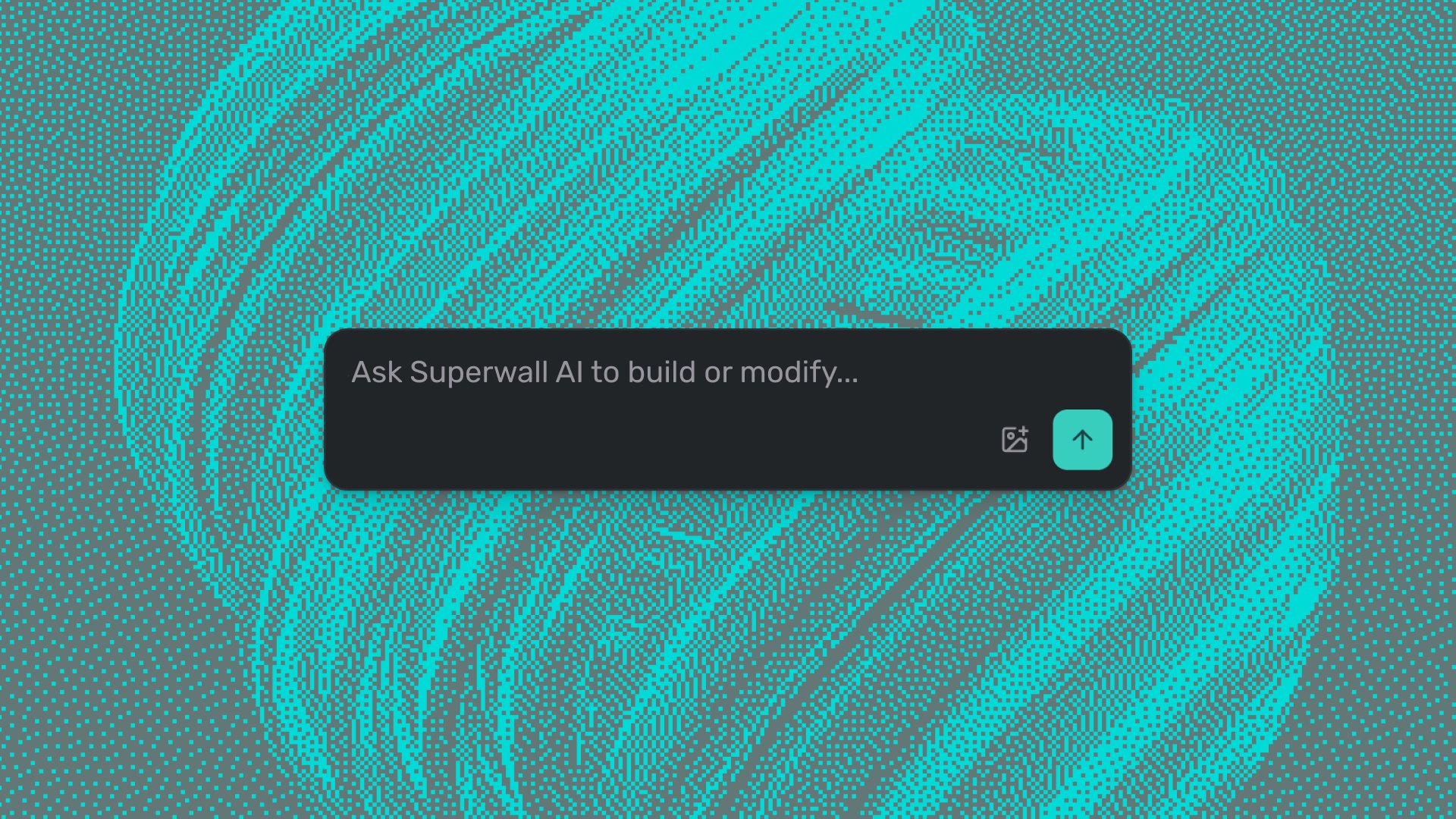

The Superwall editor is where paywalls get built - and that's still true. With AI Chat Builder and Editor MCP, you can now also describe what you want in plain language and have it built: from a template in the gallery, from Figma, or from your terminal via an agent. Use the editor the way you always have, bring in AI where it helps, or hand the whole build to an agent - every option is in Superwall.
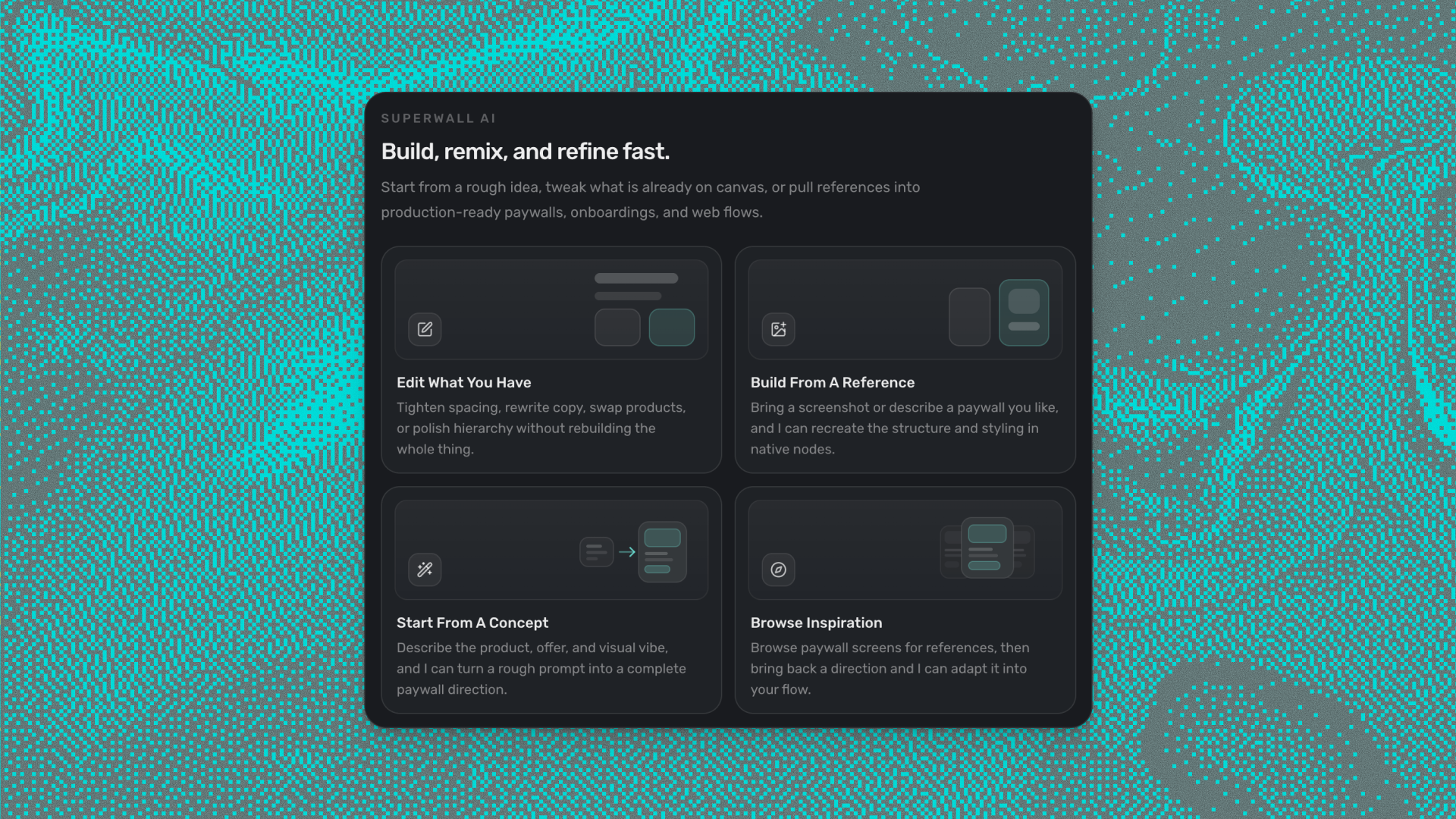
Three ways in, depending on where you're starting from. Pick a template from the gallery and brand it with AI Chat. Connect an external agent from your terminal via Editor MCP - the only tool in the category that gives an AI agent direct control of a live editor session. Or import a Figma frame directly - the approved design becomes a working paywall in one click. Each workflow works for paywalls and for Flows - onboarding sequences, cancellation surveys, conditional branching - the same editor, the same AI tools.
Start from a template and describe the changes
You need a paywall for a feature launching soon. You have brand guidelines, a rough sense of the structure, and no time for a design-to-implementation roundtrip.
Open the template gallery and pick by structure - plan selector, onboarding stack, multi-page flow - not by how it looks. Branding is what AI Chat Builder handles next.
Open the template in the editor, click AI Chat in the sidebar, and describe what you want. Selecting an element before you send gives the AI precise context - the selection travels with the prompt.
code
Update the color palette to #1B1F2E background, #F5F5F5 body text,
and #6C63FF for the CTA button and plan highlight.
code
Replace the hero headline with "Unlock [App Name] Premium" and add
a three-item benefit list above the CTA - one line each, tight copy.
code
Make this feel more premium. Keep the same products and add a short
trust row under the CTA: "Cancel anytime", "7-day free trial", "Secure checkout".
Pick a template, describe your brand, watch it update.
AI Chat Builder works across the full paywall in one conversation: layout, text, styles, products, token bindings, tap behaviors, animations, and localization. It is not a design-only tool - you can ask it to wire products, configure what happens when a user taps the CTA, or run AI localization across all your supported languages in one prompt.
It also works the other direction. If part of a design isn't behaving the way you expect, describe what you're seeing and the AI will inspect the component, explain what's happening, and fix it. You don't have to know which element is wrong or why.
Connect an agent to the live editor
You are already working in Claude Code, Cursor, or Codex. You want to build or update a paywall without switching to a browser editor.
Editor MCP connects an external AI agent to the paywall currently open in your browser. The agent reads the live editor state, makes changes through the same tools you use manually, takes screenshots to verify what it built. You stay in your terminal. The paywall updates in the browser.
To connect:
Open a paywall in the Superwall editor.
Open AI Chat in the editor sidebar and click the agent connection pill.
Choose Skill or MCP.
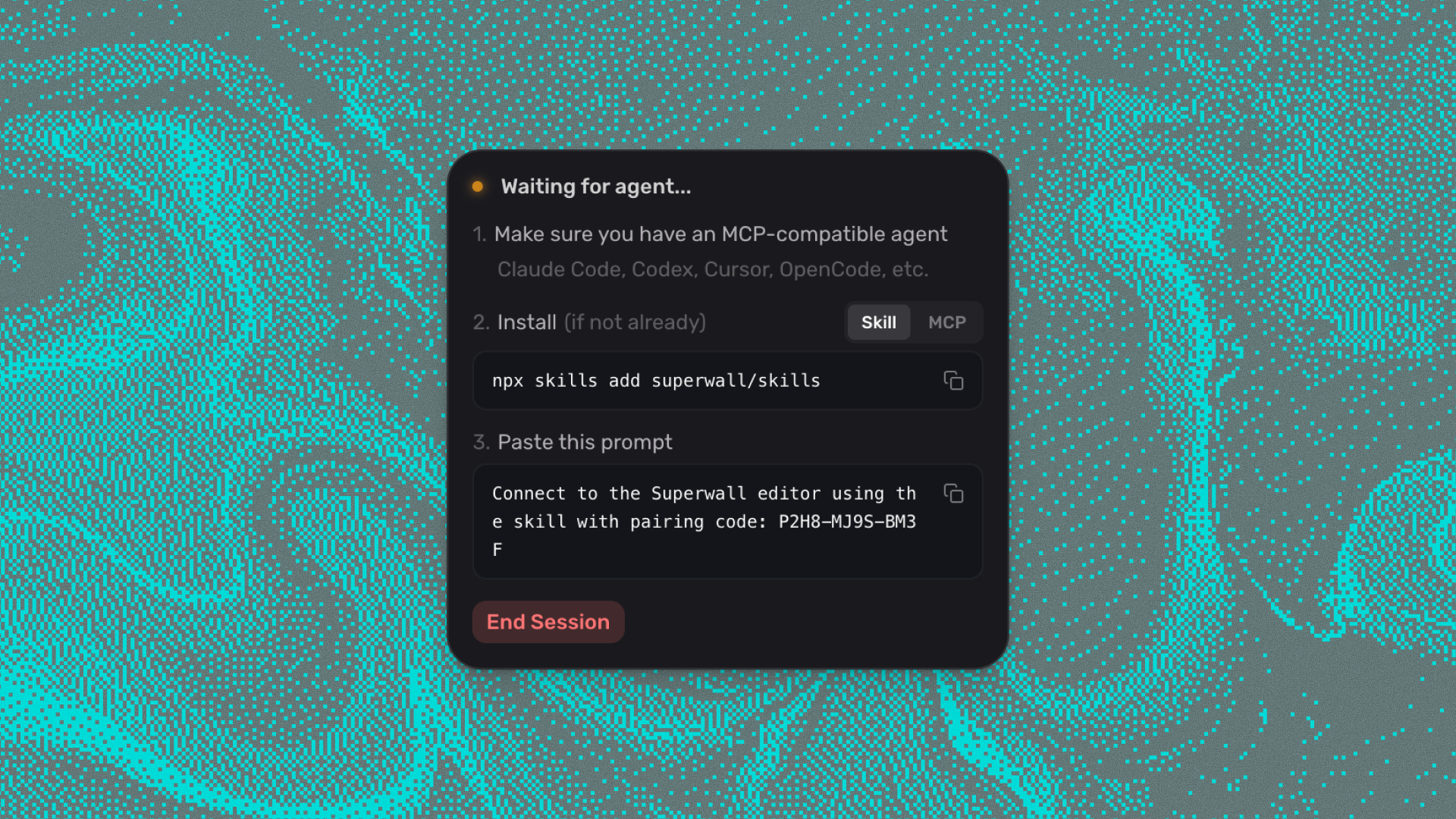
For Skill (recommended - includes the MCP plus live Superwall docs and API helpers):
bash
npx skills add superwall/skillsThen paste the prompt the editor generates:
code
Connect to the Superwall editor using the skill with pairing code: XXXX-XXXX-XXXXFor direct MCP, select your client in the editor - Claude Code, Cursor, Codex - and use the command it generates. The command includes the correct session URL; do not construct it manually.
Open the editor, click the connection pill, paste the pairing code.
Once connected, give the agent a brief:
code
Build a subscription paywall - dark navy background (#0D1117), headline "Everything
you need", three-bullet benefit list, two-plan selector (annual $59.99/year with
"Most popular" badge, monthly $7.99/month), full-width CTA "Start free trial",
"Cancel anytime" disclaimer, Restore Purchases link. Font: Inter.
The agent builds in sections and takes screenshots to verify after each pass. Redirect as you review:
code
More padding on the plan cards - the text is too close to the edge.code
CTA button needs more contrast. Try #5B4FE9.The agent builds, checks, and adjusts. You redirect from your terminal.
What agents can do in a session: edit the full layout, upload assets, create and edit products, manage style tokens and variables, configure all tap behaviors (purchase, restore, navigation, close, set state, open URL, and more), run AI localization, configure animations and transitions, use find/replace to apply changes across multiple elements at once. One agent per session at a time - disconnect before attaching a different one.
Import a Figma design directly
The design is done and approved. The problem is getting it into the editor without rebuilding it element by element.
The Superwall Figma Import plugin (free in the Figma Community) reads a Figma frame and reconstructs it as a working Superwall paywall - layout hierarchy, spacing, text content, and structure. The result opens directly in the editor.
For multi-page paywalls, select all frames before running the import. The plugin creates a Navigation component and links the pages automatically.
Once imported, use AI Chat Builder to fill in what the design left abstract:
code
The plan cards imported with placeholder prices. Set annual to "$59.99/year"
with a "Save 40%" badge, monthly to "$7.99/month", lifetime to "$99 one-time".
code
The import set inconsistent border radii. Set all plan cards to 12px.The Figma-to-editor import is lossless for anything built with Auto Layout. Text imports as static content - update copy via AI Chat or directly in the editor after import.
Build onboarding flows and cancellation surveys the same way
The same editor, the same AI Chat Builder, the same Editor MCP - they all work on Flows.
Flows are multi-page experiences: onboarding sequences, cancellation surveys, permission prompts, post-purchase upsells. They live in the same editor as paywalls. That means you can describe a full branching onboarding flow in plain language and have it built the same way - including conditional branching, where routes between pages respond to user input or attributes.
code
Add a branching step after the trial screen: if the user selects "Just browsing",
route them to a softer value prop page. Otherwise continue to checkout.
If you've been thinking about paywalls as single screens, think bigger. The whole monetization and onboarding surface - every screen between install and conversion - is buildable this way.
How to choose
Starting point | Best workflow |
|---|---|
Need a paywall fast, have brand guidelines | Template gallery + AI Chat Builder |
Working in Claude Code, Cursor, or Codex | Editor MCP via Superwall Skill |
Design exists in Figma | Figma import, then AI Chat or agent to refine |
Figma design + complex behaviors to wire | Figma import, then connect agent |
Building a multi-page Flow or onboarding | Any of the above - same editor, same AI tools |
The three approaches compose. Import from Figma, brand it with AI Chat in the browser, then attach an agent to configure complex flows. The same editor session supports all three.
AI Chat Builder, Editor MCP, and Flows are available on every Superwall plan. Not on Superwall yet? Start building.
FAQ
Does AI Chat Builder publish changes automatically?
No. Every change goes to draft. Review in the canvas preview, use History to roll back anything that looks wrong, then publish manually when the paywall is ready.
What is the difference between the Superwall Skill and Editor MCP?
Editor MCP is the protocol that connects an external agent to the open editor session. The Superwall Skill is a higher-level package - Editor MCP plus live Superwall documentation and API helpers. The Skill is the recommended path for most agents because it reduces the prompting needed to get accurate output on Superwall-specific components.
Can I use this on an existing paywall, not just a new one?
Yes. Open any existing paywall in the editor and connect AI Chat or an agent. AI Chat reads the current state; for an agent, it inspects the live editor before making any changes. Neither workflow requires starting from blank.
Does this work for Flows, or only paywalls?
Both. AI Chat Builder and Editor MCP work on any screen open in the Superwall editor - paywalls, onboarding flows, cancellation surveys, multi-page sequences with conditional branching. If it's in the editor, AI can build it.